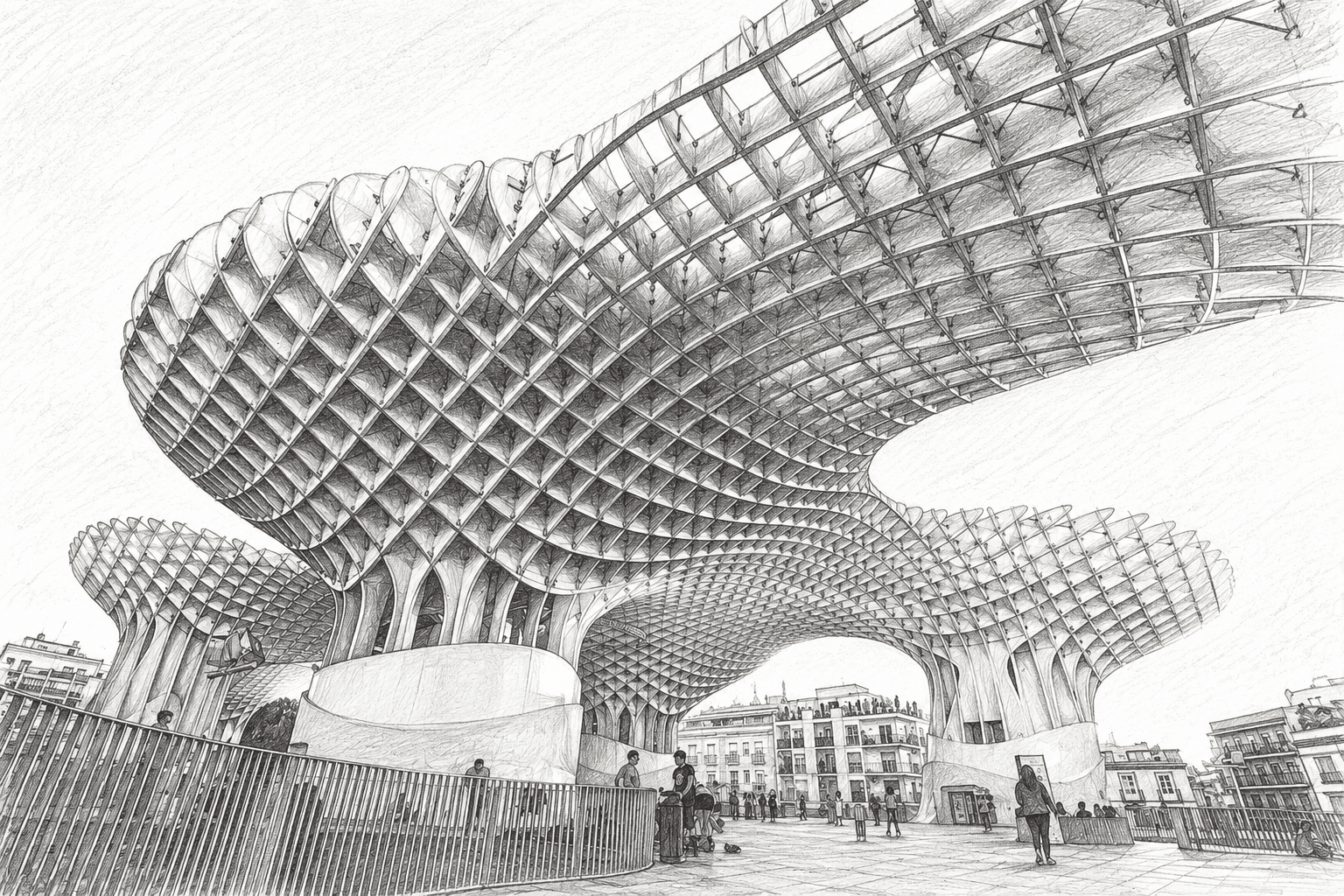
Sketch to Render AI for Detailed Architectural Visualization
Give Intker a rough drawing and get a realistic architectural render back in about 30 seconds. It follows your lines, so the design stays yours.
Works with








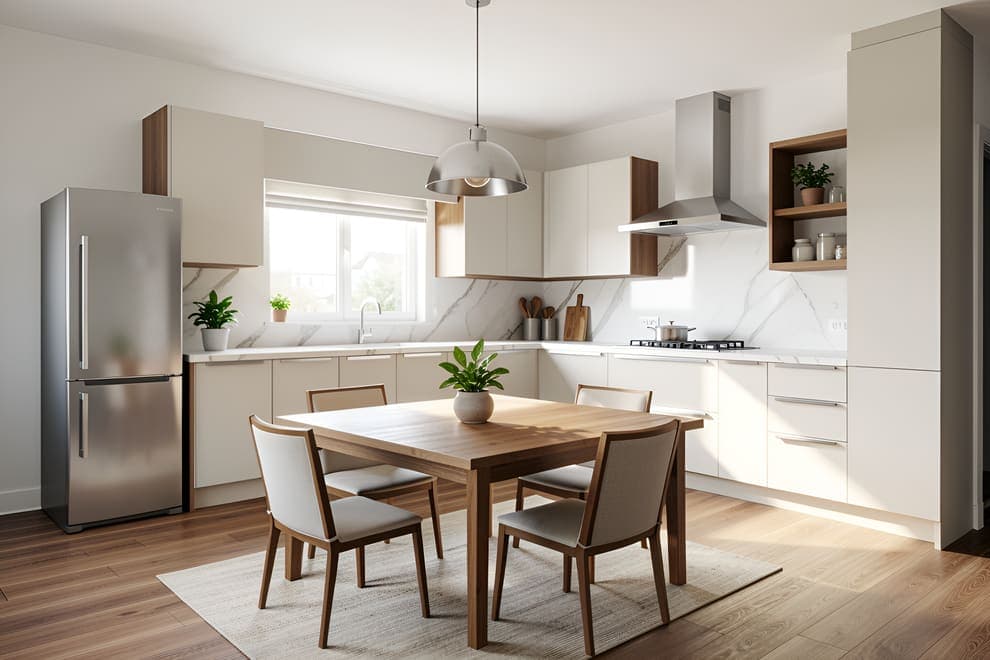
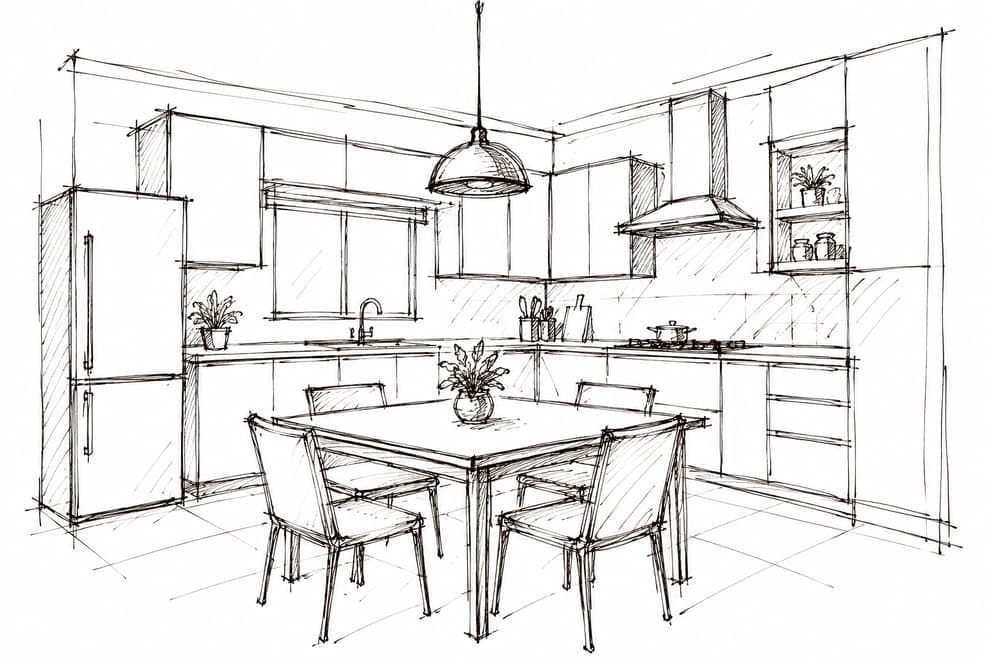
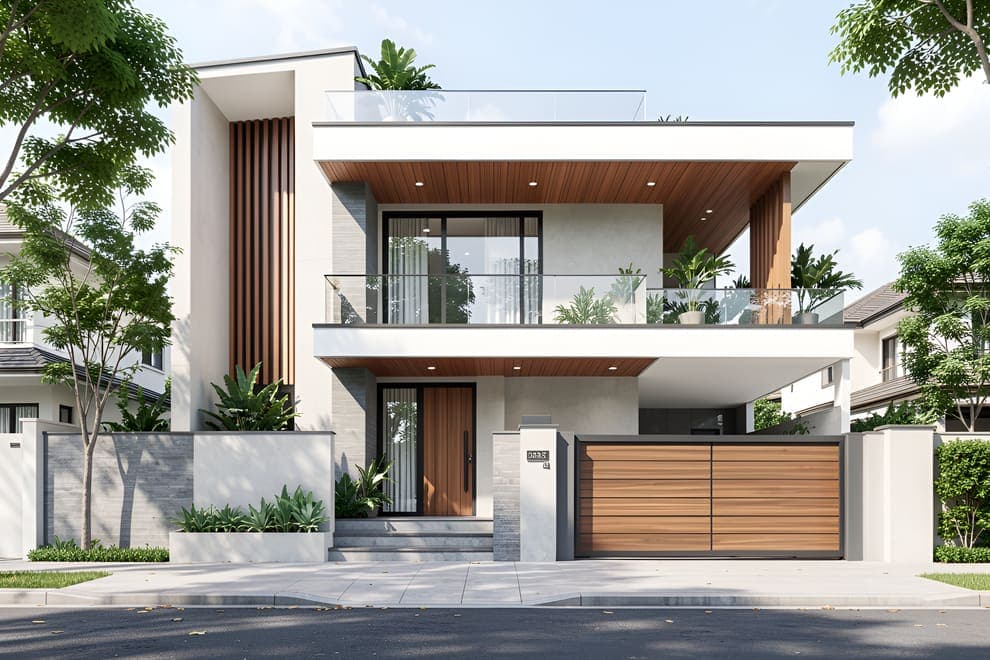
Before / After
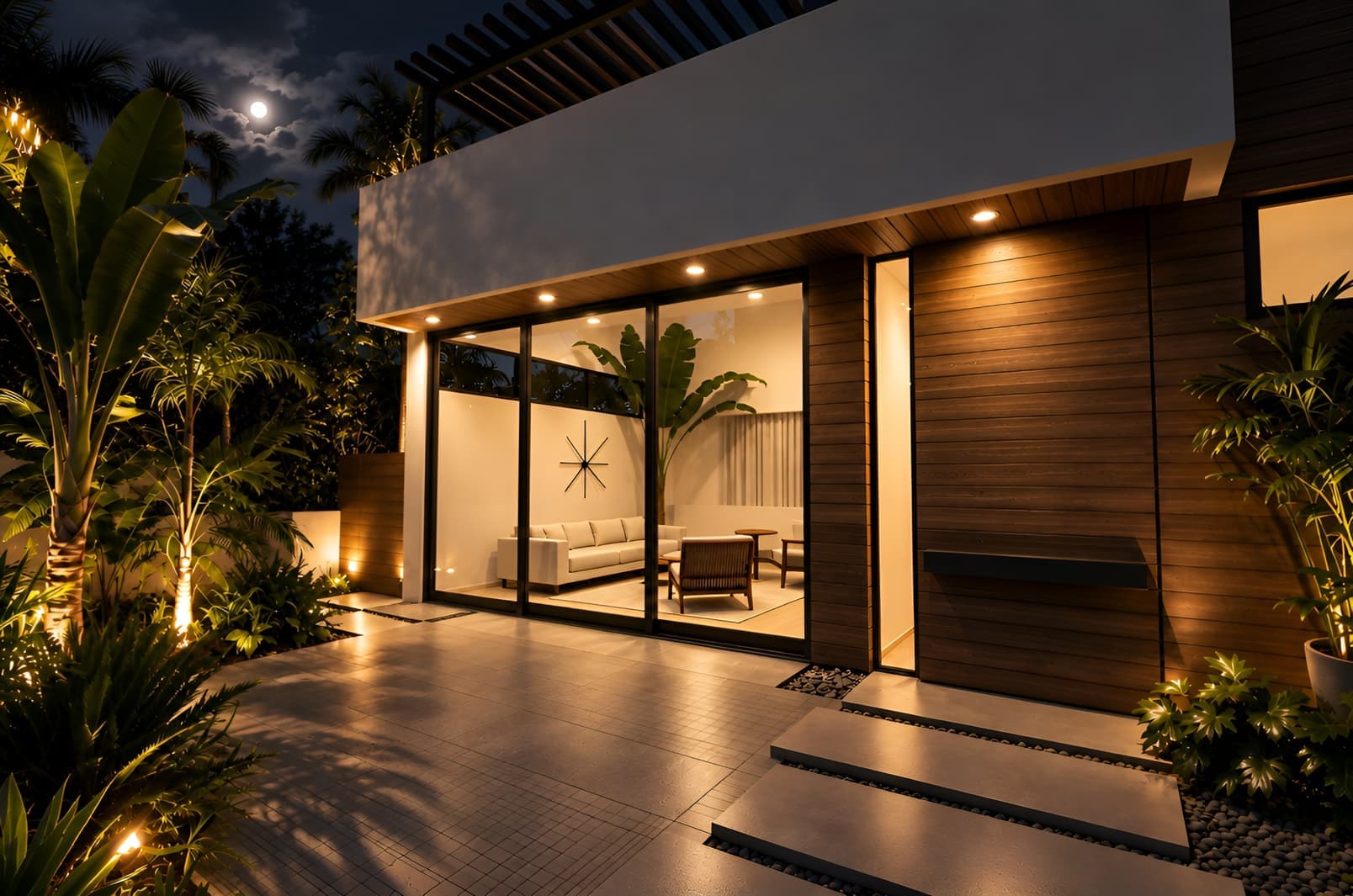
From Sketch to Photorealism
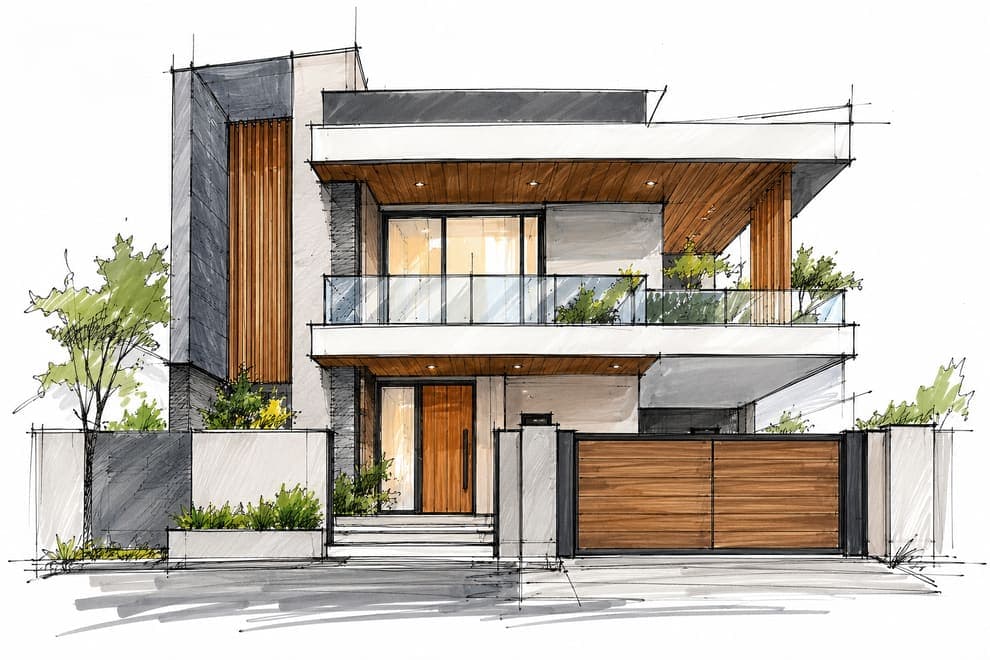
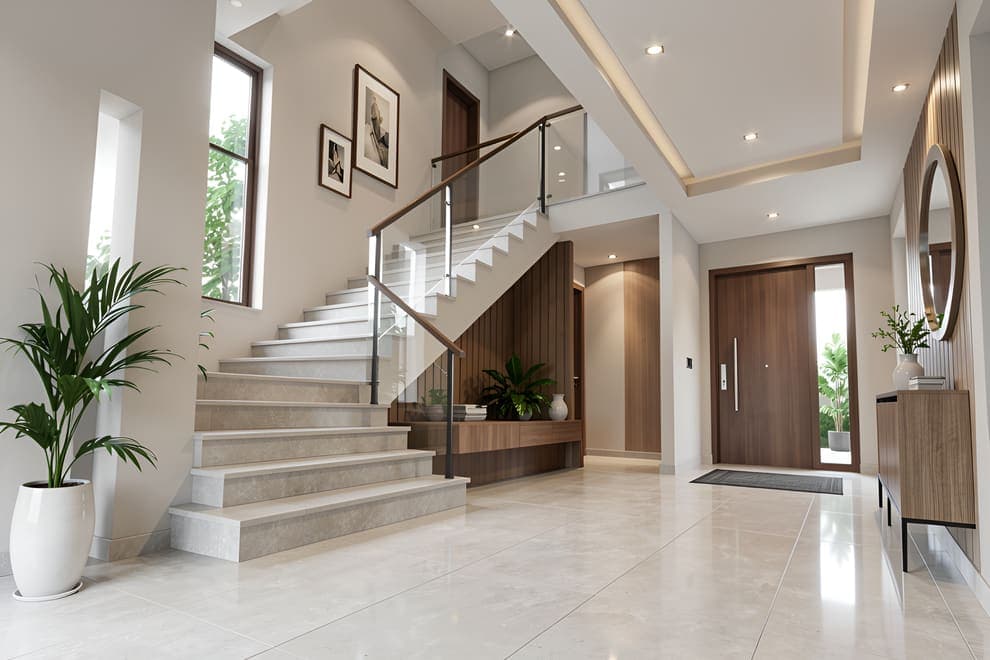
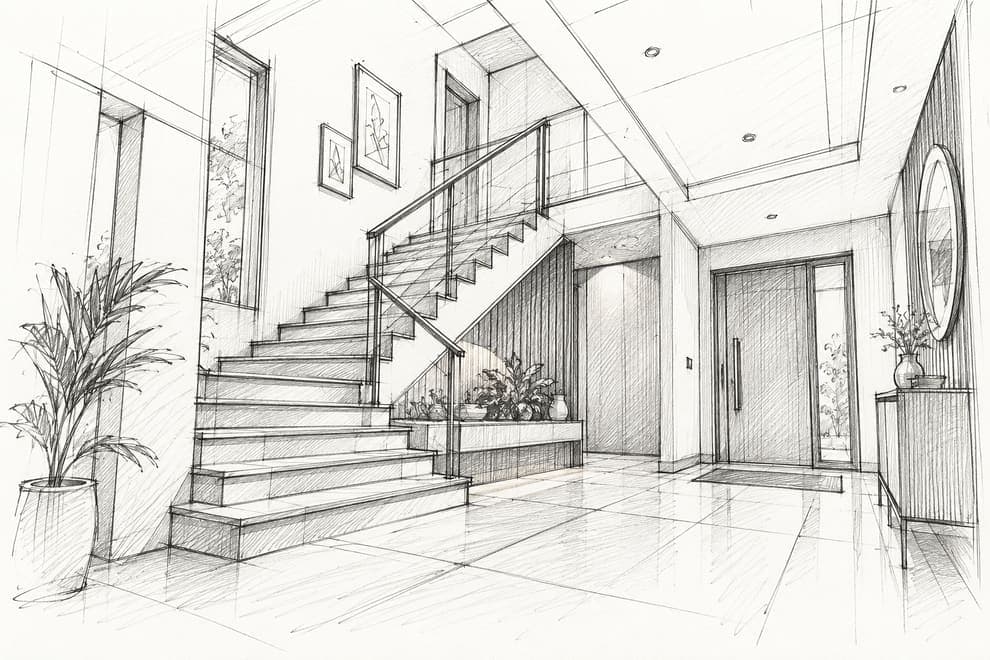
Start with a hand-drawn idea and get a photorealistic render in seconds
Explainer
What is Sketch to Render?
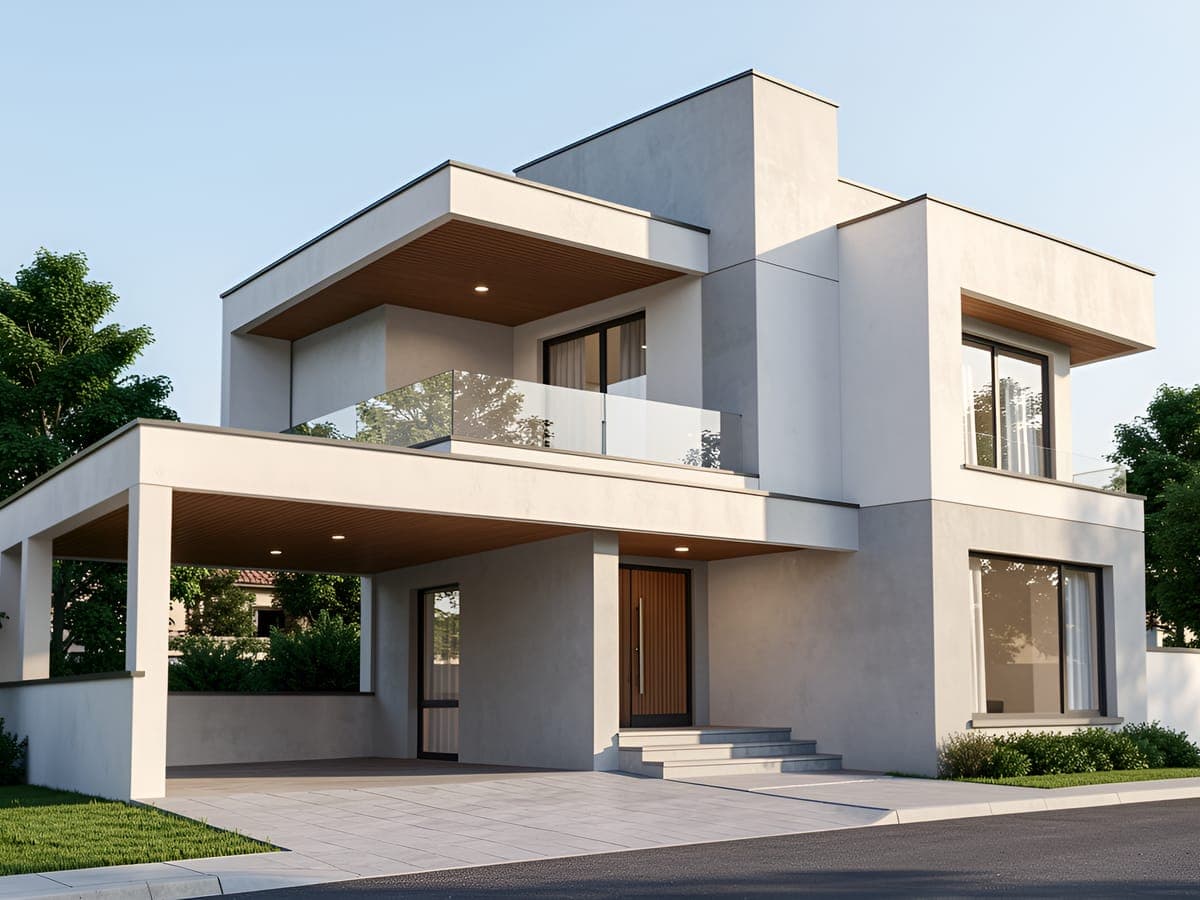
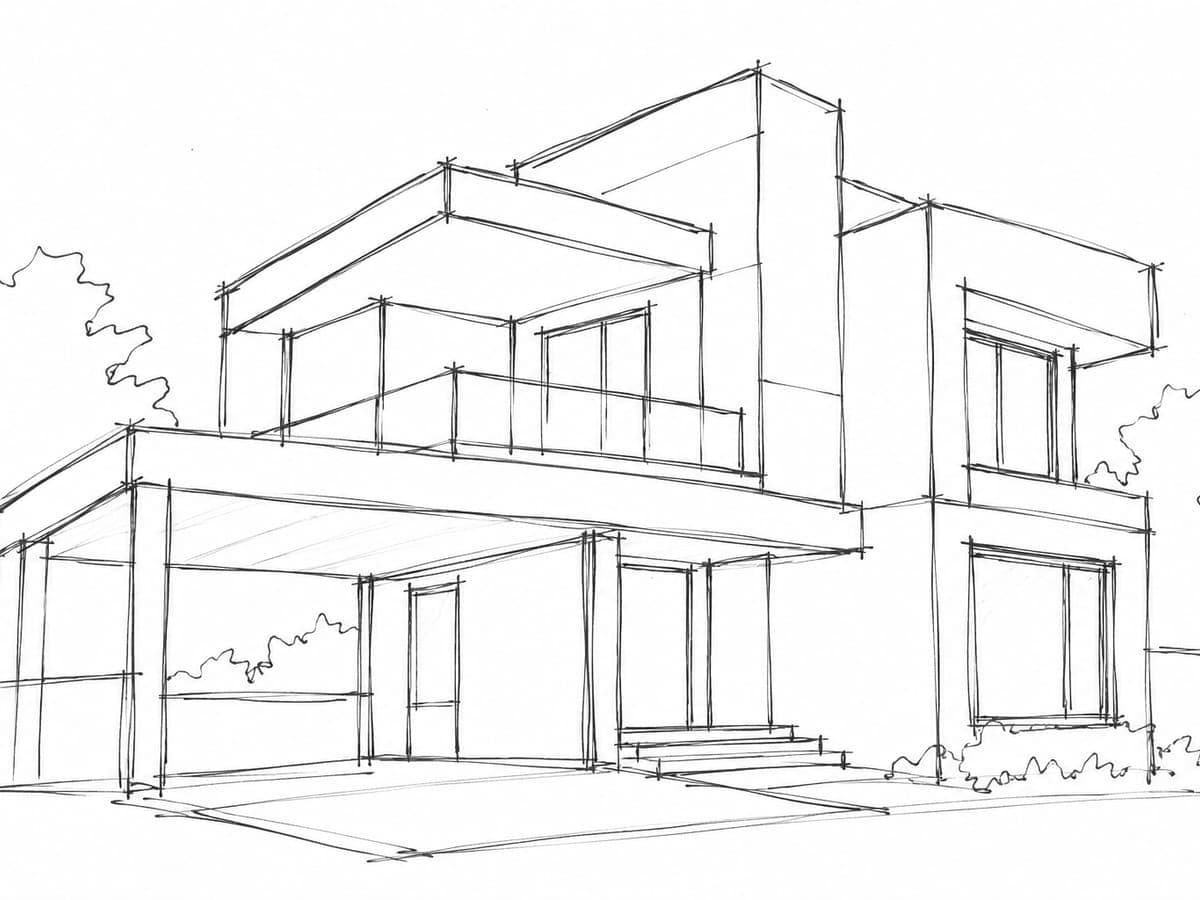
Sketch to render is the process of turning a hand-drawn concept into a realistic architectural visual. With sketch to render AI, you can take a rough drawing and generate detailed 3D renders with realistic materials, lighting, depth, and atmosphere.
Intker makes this process simple. Upload your sketch, choose a visual direction, and let Intker's AI rendering engine turn your early idea into a polished architectural visualization ready to explore, refine, and share.
How it works
How Intker’s Sketch to Render Works
See your design take shape, from a simple sketch to a realistic render in three steps.
- 1
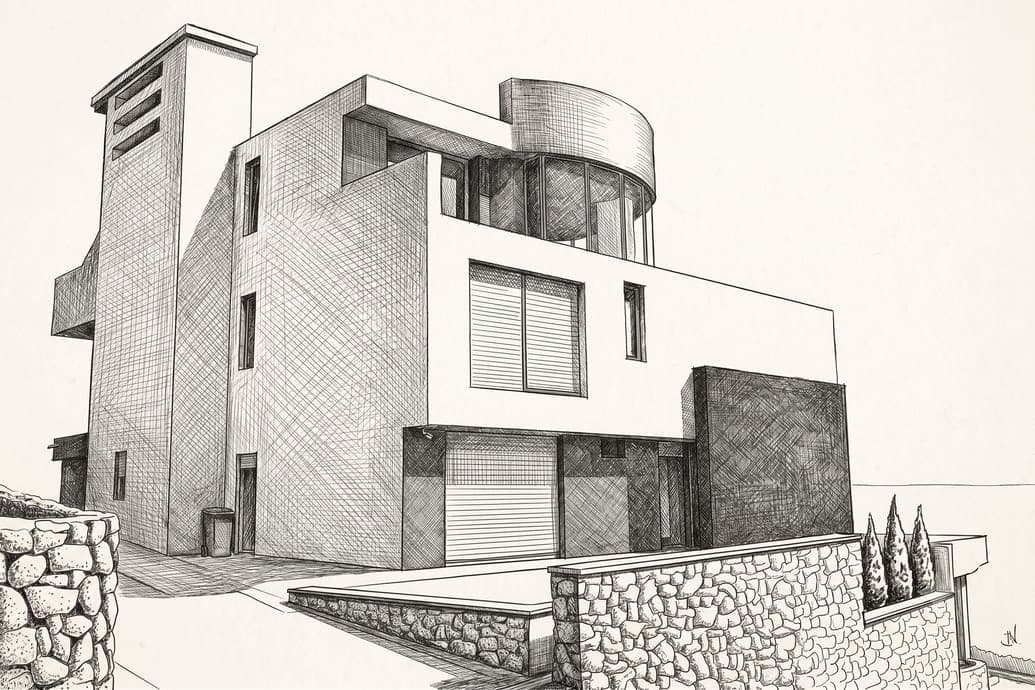
Upload Your Sketch
Upload a hand-drawn sketch or rough architectural concept to get started.
- 2
Choose Your Direction
Set the site context, atmosphere, and details, or prompt the changes you want.


- 3
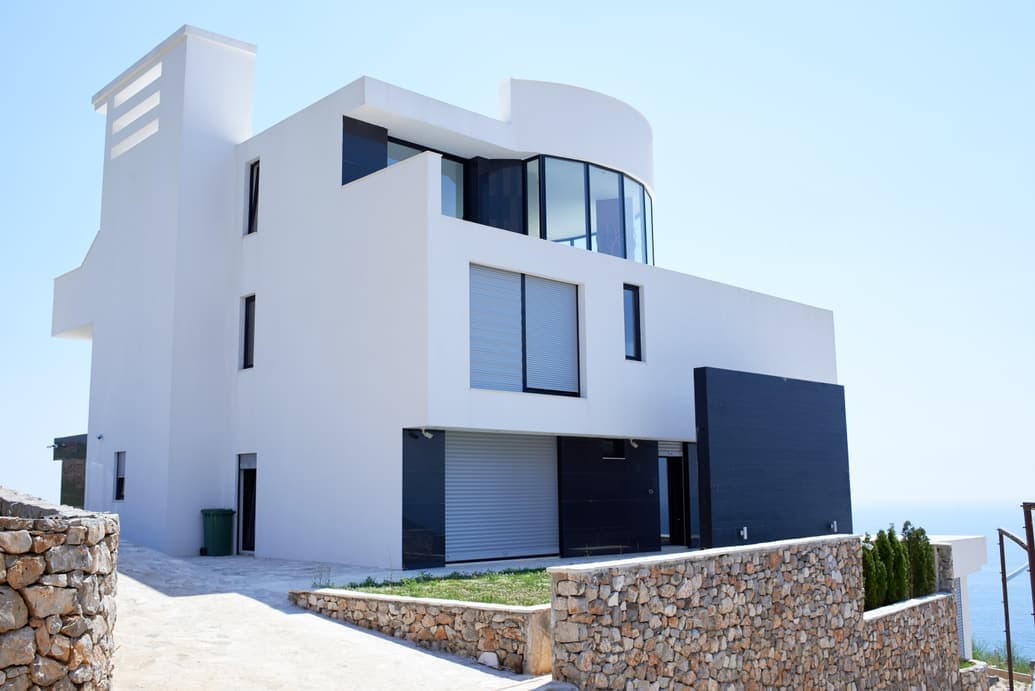
Get Your Render
Generate a realistic 3D render with depth, detail, and atmosphere.
SEE THE FINAL RESULT
See sketch to render in action
Watch a simple sketch turn into a realistic architectural render, with materials, lighting, and details brought to life.
Fidelity
It Renders Your Idea, Not Its Own
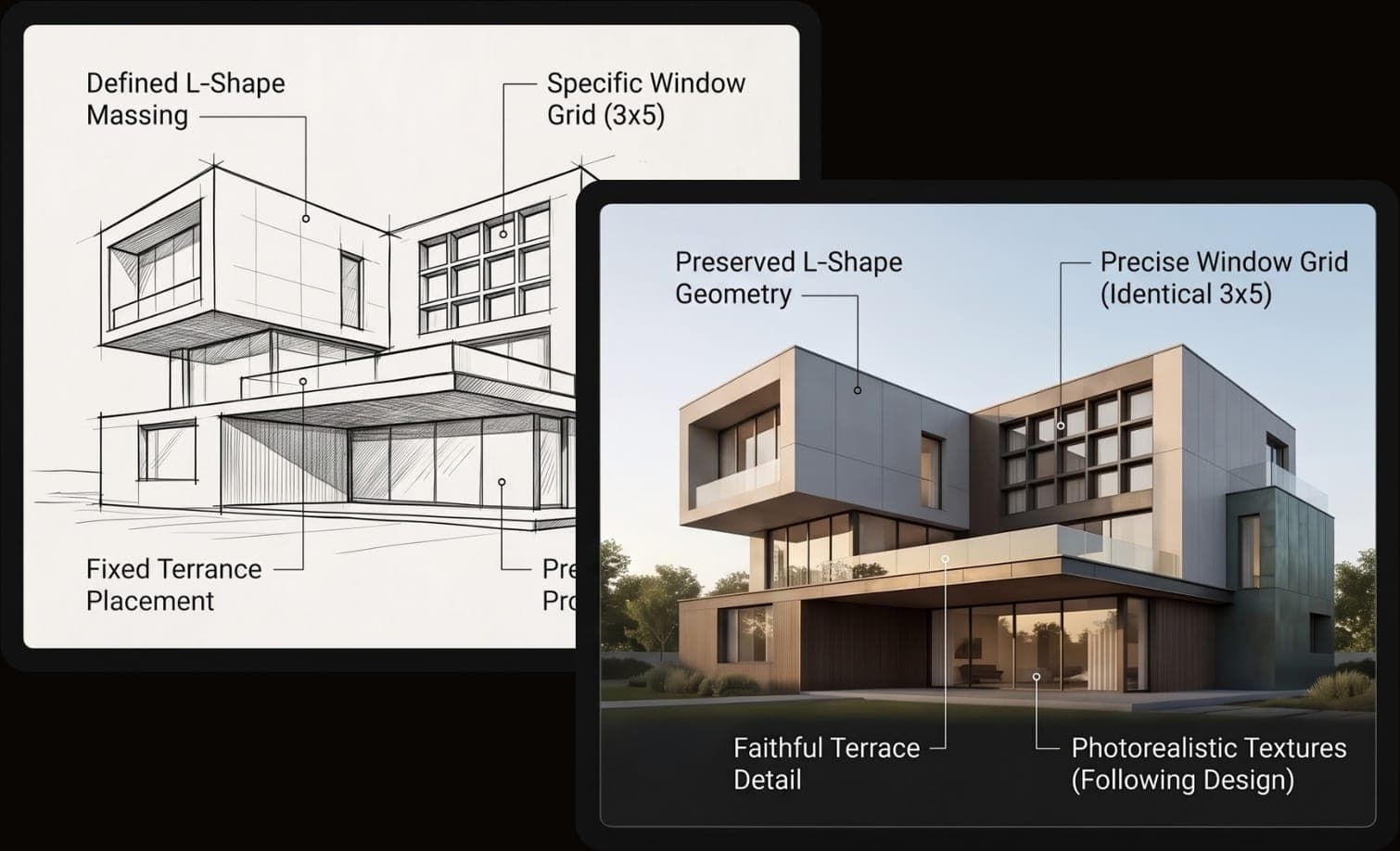
Intker follows the lines, proportions, and layout of your sketch to create a photorealistic render that stays true to your design.
Unlike AI image generators that can improvise around a prompt, Intker’s sketch to render AI process preserves the geometry you drew. Your building’s massing, window placement, proportions, and key details carry through to the final 3D render, so you see your design, brought to life, not a different version of it.
Light, Shadow, and Material Realism
Turn your rough sketch into a high-fidelity 3D render with realistic lighting, natural shadows, material textures, reflections, and depth. Intker’s sketch to render AI captures the details that make your design feel real while staying true to your original sketch.
Input types
If you can sketch it, Intker can render it
Your sketch doesn't need to be clean or precise. Intker uses advanced AI rendering to bring your original idea and design concept to life.
Hand-drawn sketches
Upload a pencil sketch or a photo from your phone.
Digital sketches
Use drawings from Procreate, iPad, or other digital tools.
Scanned linework
Bring old drawings and scanned concepts into your workflow.
CAD drawings
Render precise plans, elevations, and clean linework with ease.
Whatever you upload, Intker uses your sketch as the foundation for AI rendering. The lines and design you provide guide the final 3D render, rather than being redrawn into something different.
Control
Shape Your 3D Render, Your Way
Take control of your sketch to render. Choose the style, materials, lighting, and mood you want, then explore different directions from the same sketch until you find the right look.
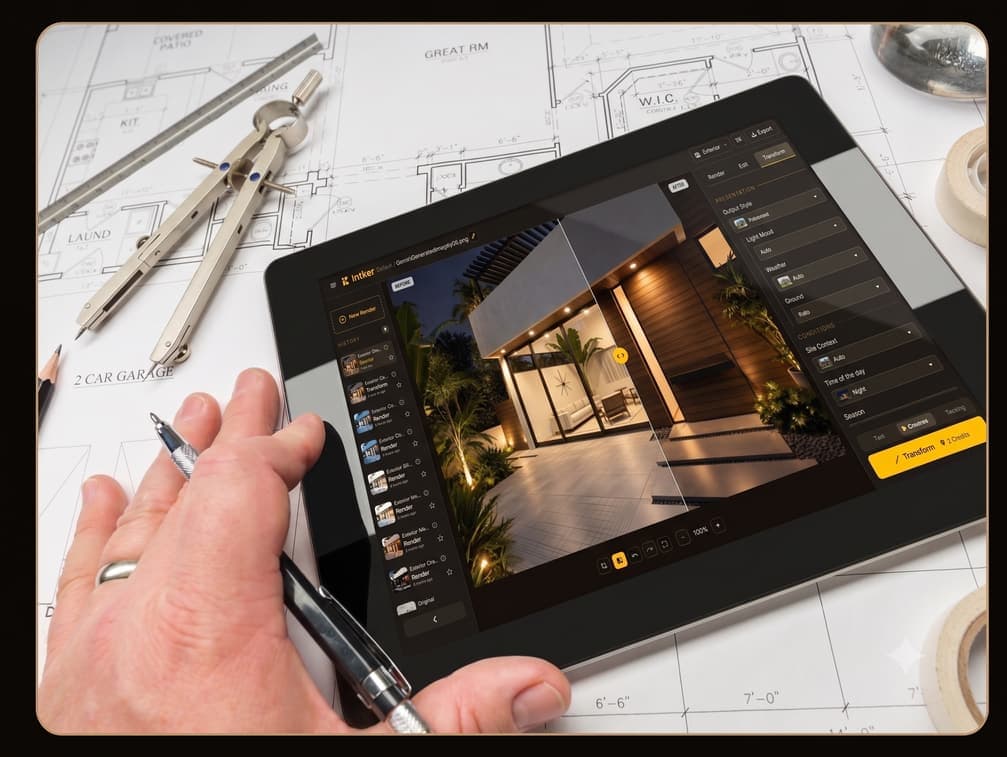
- Choose a visual style or describe the look you want.
- Adjust materials, lighting, and atmosphere to shape the scene.
- Generate multiple AI renders from the same sketch.
- Add furniture, decor, landscaping, and other elements with virtual staging.
Who it's for
Sketch to Render for Ideas of Every Kind
Whether you design, teach, or study, Intker turns the sketch in front of you into a realistic visual you can share, explore, and build on.
Turn early concepts into architectural visualization before spending time on detailed modeling.

Explore interior and exterior rendering ideas as quickly as you can sketch them.
Turn class projects and rough concepts into realistic 3D renders for presentations and critiques.

Use sketch to render AI to visualize a home, room, or space from a simple drawing.
Comparison
Sketch to Render Without Starting from Scratch
Go from sketch to render without modeling your idea first. What once took hours of 3D work can now become a realistic visual in about 30 seconds.
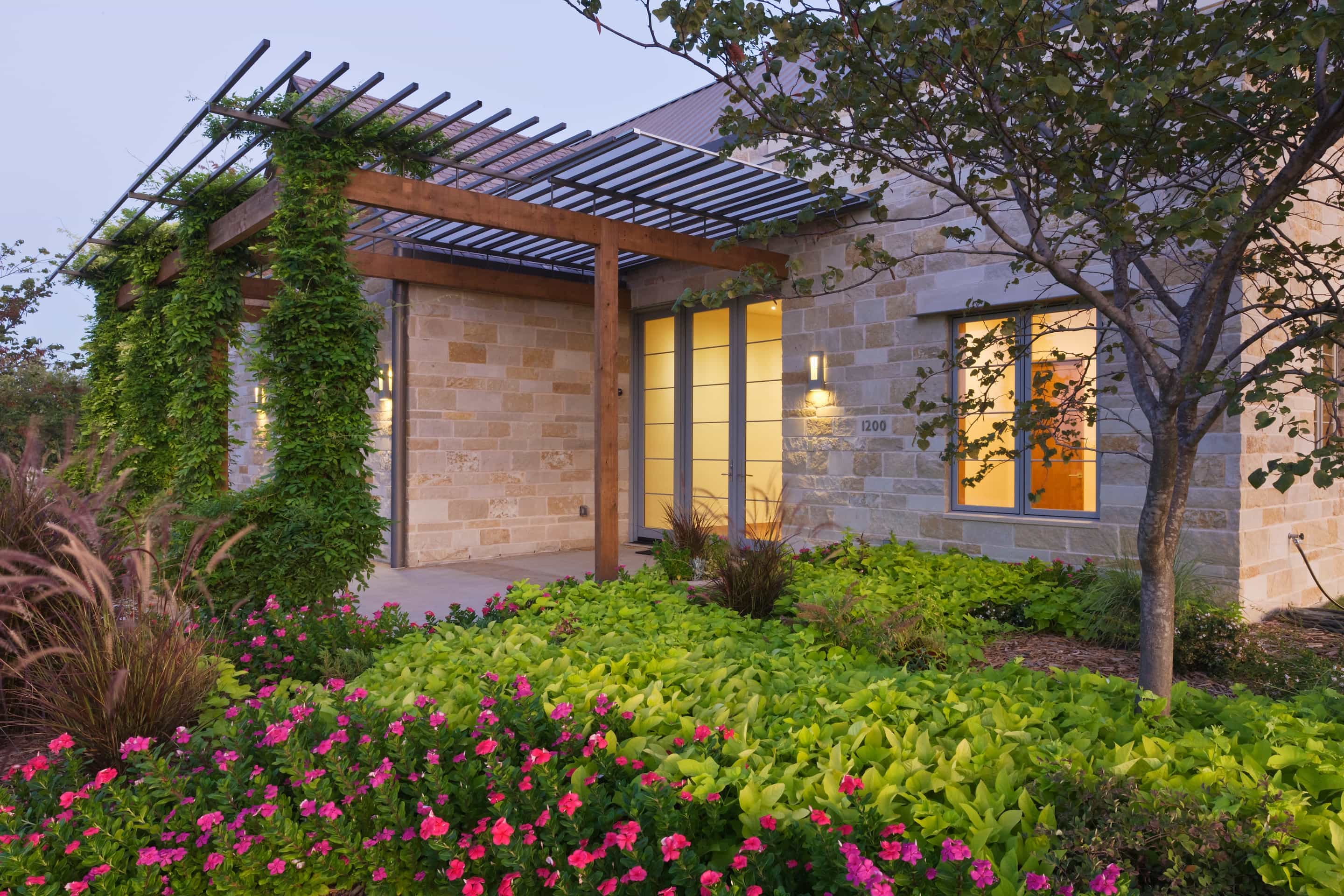
Ready to See Your Sketch as a Polished Render?
Take your idea from a simple drawing to a realistic architectural visual. Upload your sketch and start exploring with Intker’s AI rendering engine.